 CamStation
 is coming to the Mac: Apple Silicon (M1 or later), macOS 15.2 or later.
A live production studio, built for the Mac.
Cut cameras, fire names and logos over any shot and mix your sound to broadcast standards, then stream it, record it and send it into any call at once. Native to Apple Silicon, and laid out like a broadcast gallery.

Switch
Take the next shot.
Click a camera and the program changes with the transition you chose: a cut, a half-second crossfade or a dip through black. The red tally follows the program, so you always know what is on air.



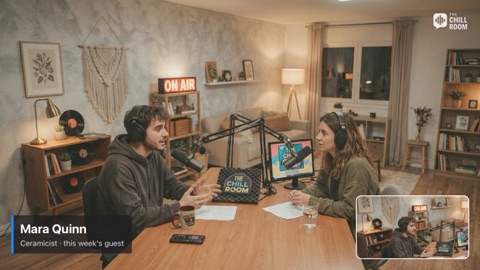
On air: Guest camera, with Mara Quinn’s name.
Take · click a camera, or press 1–3
Transition
Over · channel 2
Tied to the next take: cut away and her name leaves with the guest.
Scenes as tabs, a card for every input, stingers, wipes and Morph when a moment needs more. Live switching
Over the program
Fire a name over any shot, while you cut.
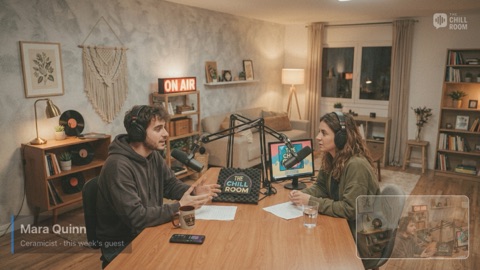
Four channels sit above the program, loaded before you need them: a name, a logo, a picture-in-picture, a full-frame card. Each fires with one key and stays up through your cuts.
Tie one to the next take and it changes on the cut, so a guest’s name leaves with her shot. A logo that stays rides above a stinger; a name that changes goes under it.
Over the program
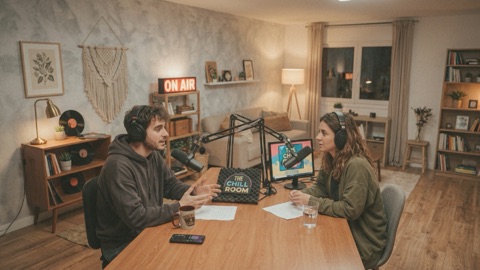
0.6 sWide shot
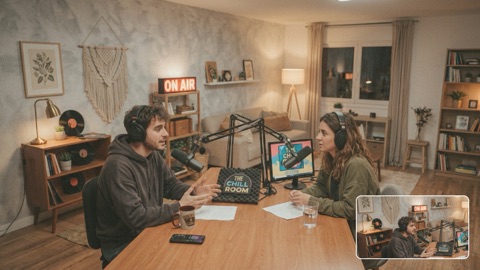
1.1 sChannel 1
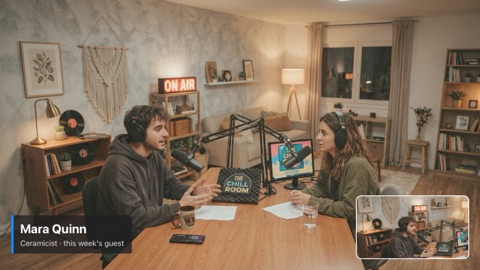
2.1 sChannel 2
3.2 sChannel 3
4.9 sAll off
- Shelf cam PiP
- Guest’s name
- Logo bug
- Sponsor card
Sound
A mixer with rules, not routing.
Every show has its own mixer. Play a clip and the mics and the music step aside by themselves; cut back to a camera and they return, on the same curve as the picture.

Music that ducks itself.
The bed dips while anyone speaks and comes back when they stop, the way a radio presenter rides the fader.
Music bedA call guest stays heard.
A call on screen, captured with its app’s sound, is heard whatever you cut to, and ducks the music like a mic.
Screen captureA broadcast strip on every mic.
Voice isolation, gate, EQ, compression and a limiter, with presets that start you sounding right.
Sound
Go live
Stream it, record it, send it into the call.
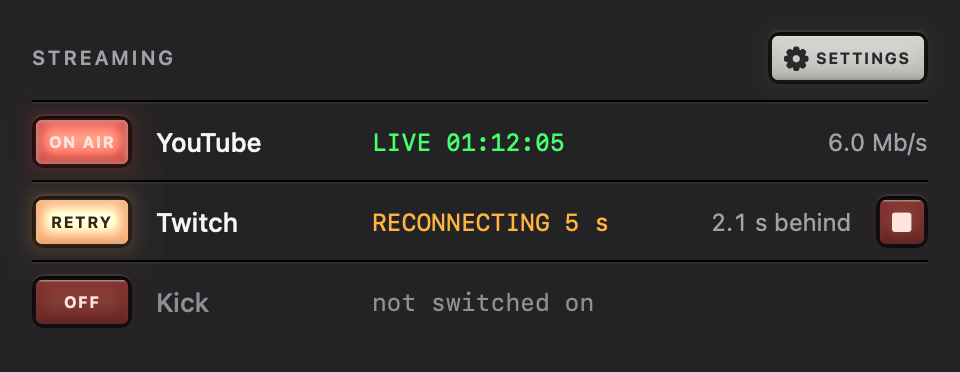
YouTube, Twitch and Kick at once.
Each platform gets its own encoder and its own reconnects, so one slow link never holds up the others.
Streaming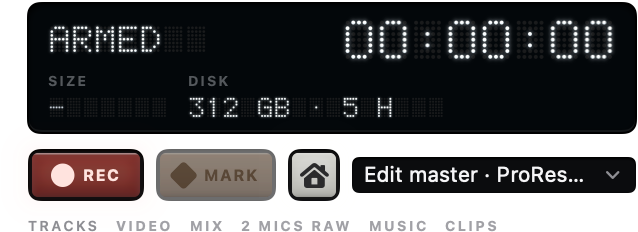
Separate tracks for the edit.
Record while you stream: the show as it aired, every mic, the music and the clips as their own files, and markers your editor reads.
Recording
One camera and mic for every call.
Your whole show in Zoom, Meet, Teams and the rest as CamStation Camera and CamStation Microphone, with nothing to set up per app.
Into every call
A camera from anywhere.
IP cameras on your network over RTSP and ONVIF, or a guest across town over SRT, checked before they go on air.
Network cameras


Genlock Media Engine
Leaves your Mac room for the show.
Built for Apple Silicon. The GPU draws the picture and the media engines decode your clips and encode every stream and recording, so the processor is left for the rest of your Mac. When nothing needs a picture, the engine sleeps.
How the engine works- ADDED LATENCY Webcam latency: 2 frames or less added over the raw camera (67 ms at 30 fps). budget
- TAKE STARTS WITHIN Takes: A cut or crossfade starts within one frame of the command; every audio channel moves with the picture on an equal-power curve, crossing at −3 dB exactly at the cut point. budget
- MUSIC BED COSTS Music channel: 0.02 % of one core on an M2 Pro, with both decks crossfading and the ducker working. measured
Every feature
A native Mac app that works like broadcast gear.
Pick what your show needs: each page shows how an operator runs it.

Live switching
Prepare the next shot while this one is on air, then take it with one key.

Over the program
Names, logos and PiP on four channels, and a name can leave with the next take.

Sound
Mics that close under a clip by themselves, a broadcast strip on every mic, loudness held.

Music bed
A queue of songs that ducks under any voice by itself, a call guest’s included.

Into every call
Your show as one camera and one microphone in Zoom, Meet, Teams and every app.

Streaming
YouTube, Twitch, Facebook, Kick and any RTMP(S) server at once, each with its own encoder.

Recording
The program to a file, every mic on its own track, markers your editor reads.

Network cameras
IP cameras on your network over RTSP and ONVIF, a guest anywhere over SRT.

Screen capture
A display, a window or one app, with its sound on its own channel.

Genlock Media Engine
How CamStation uses the GPU and the media engines, and what a show costs your Mac.
Made for
Shows people come back to.

Podcasts and talk shows
Two or three cameras, a mic each, names under the guests, music that ducks.

Churches and events
Network cameras round the room, lyrics and names, a stream that holds on a weak uplink.

Teaching and webinars
Camera, slides and screen in one picture, in Zoom or Teams as an ordinary camera.

Music streams
Instruments untouched, your DAW in stereo, every input on its own track.
Questions
Questions, answered.
Which Macs does it run on?
Macs with Apple Silicon (M1 or later), on macOS 15.2 or later. CamStation is built for those chips only, so it uses their media engines and GPU directly.
Can I stream directly from CamStation?
Yes, to YouTube, Twitch, Facebook Live, Kick and any RTMP server, several at once, with no extra software.
Does it work with Zoom, Meet and Teams?
Yes. Your show appears there as “CamStation Camera” and “CamStation Microphone”, like any camera and mic.
Do I need OBS?
No, CamStation does the whole production. It also works alongside OBS as a camera source.
Is it free?
There will be a free version to get started, and CamStation Pro for the production tools.
When is it available?
CamStation is in active development. Leave your email and you’ll hear when the beta opens.
Your show, on your Mac, the way broadcast does it.
Be the first to know when the beta opens.